

How to send ebooks from Curios to your Kindle
Follow these simple steps to send your Curios ebooks directly to your Kindle device or app.
Note: you will only have to set this up once and then all future ebooks will be able to be sent to your Kindle at the press of a button.
Step-by-Step Instructions
Step 1: Go to Amazon.com
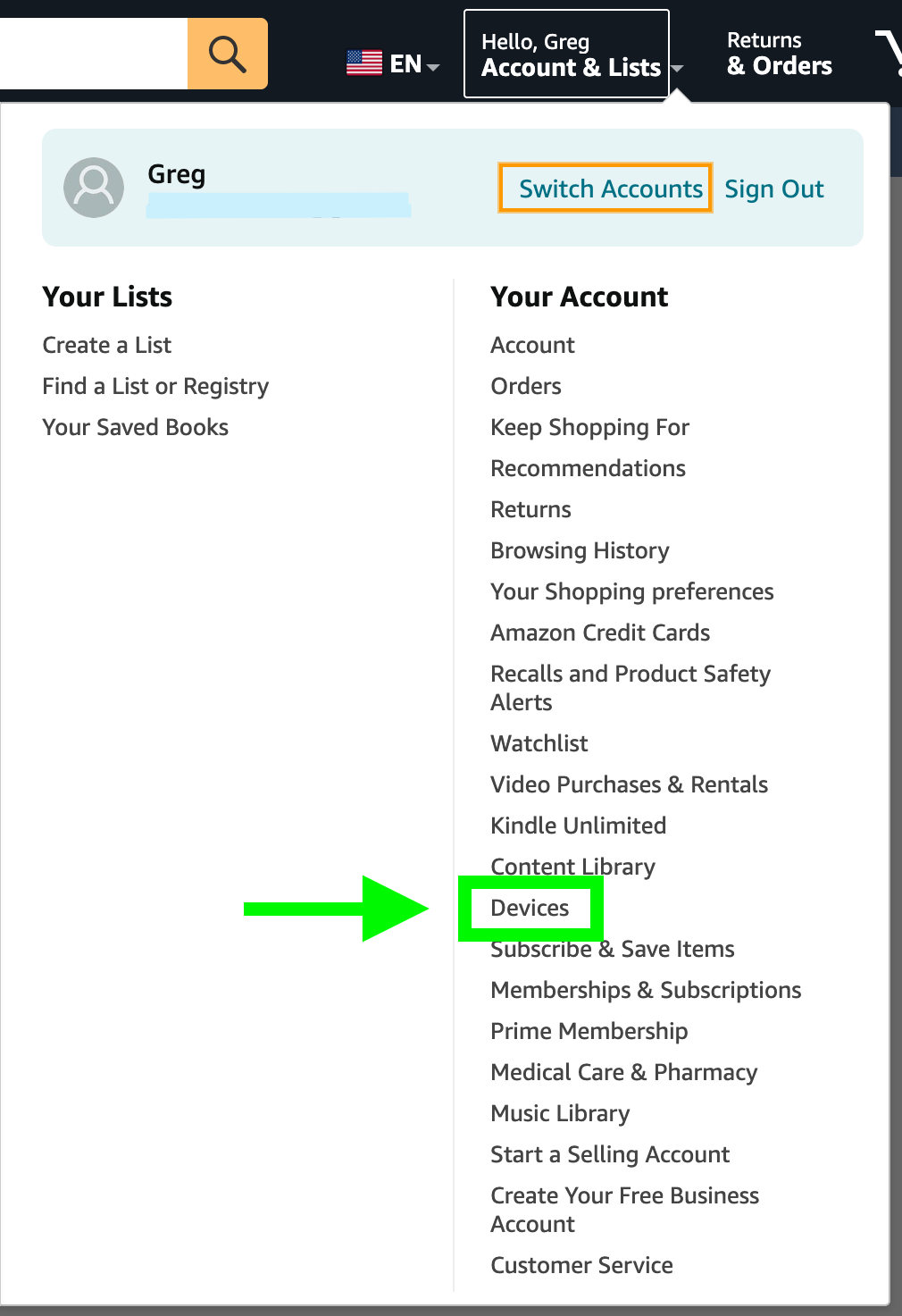
Step 2: Open the account menu in the top right corner and click "Devices"
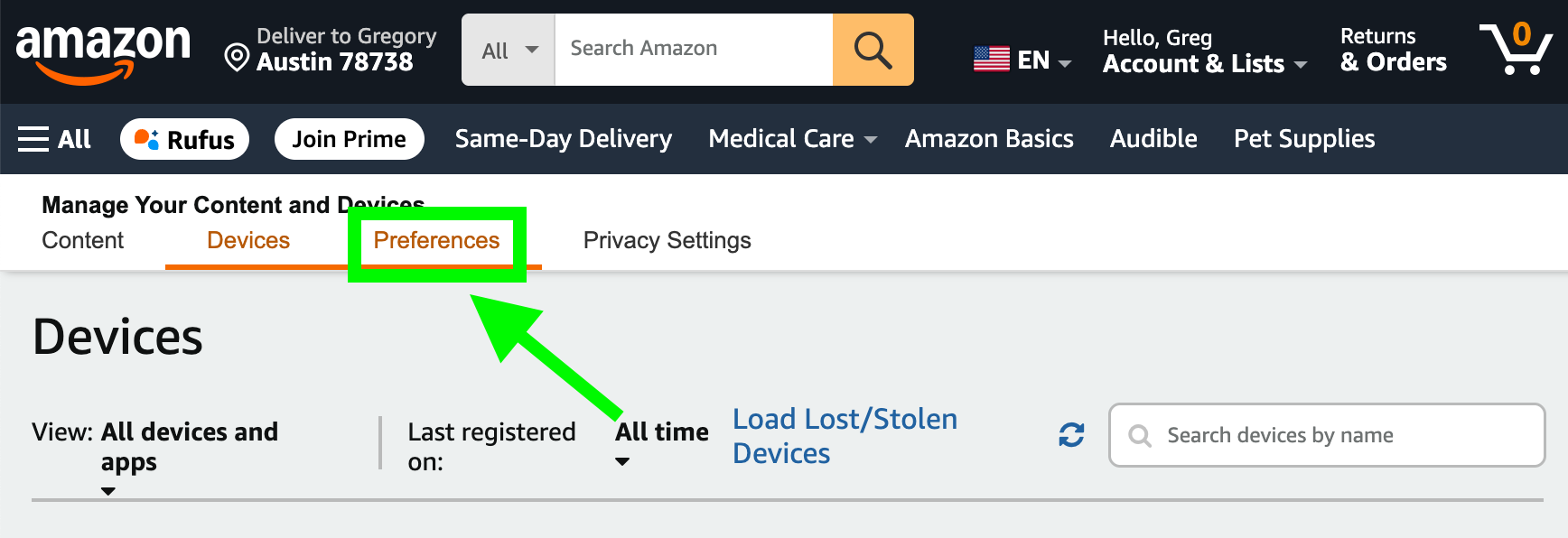
Step 3: Select the "Preferences" tab at the top
Step 4: Add [email protected] to approved emails
- Scroll to the very bottom of the preferences page until you see "Approved Personal Document E-mail List"
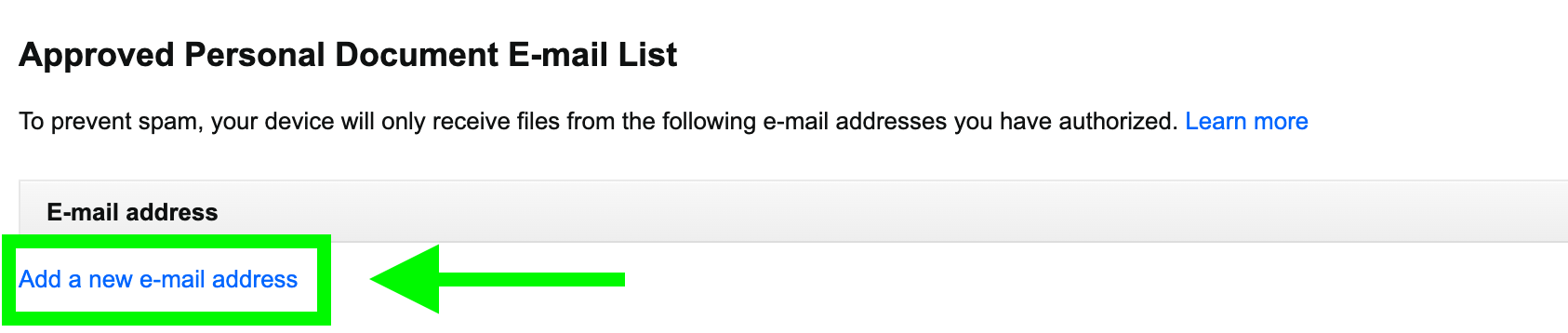
- Click on the "Add a new e-mail address" link
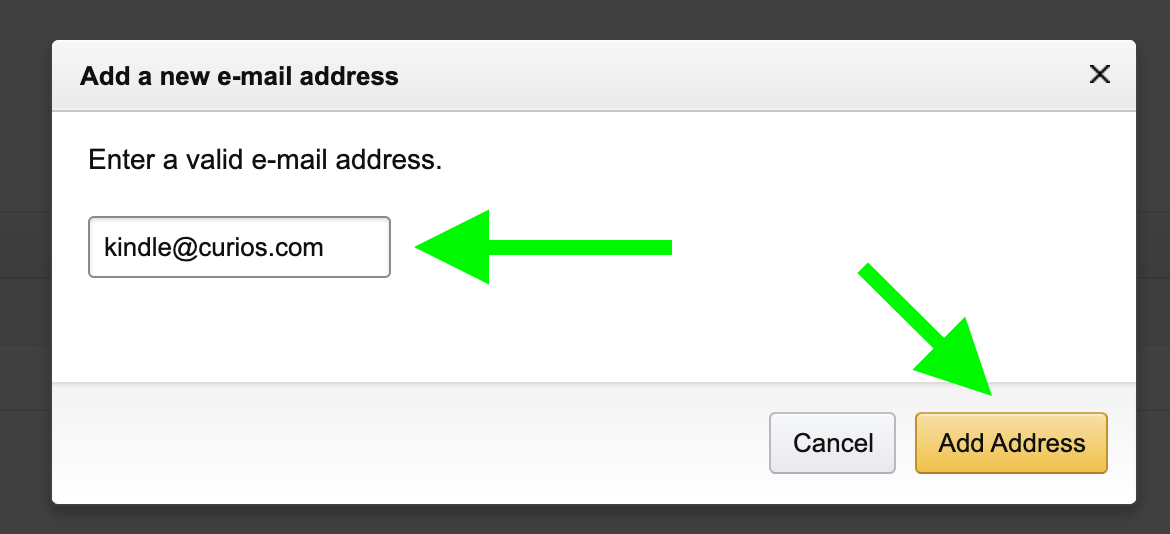
- Then enter "[email protected]" in the field and click "Add Address"
- You should see [email protected] added as an approved email address
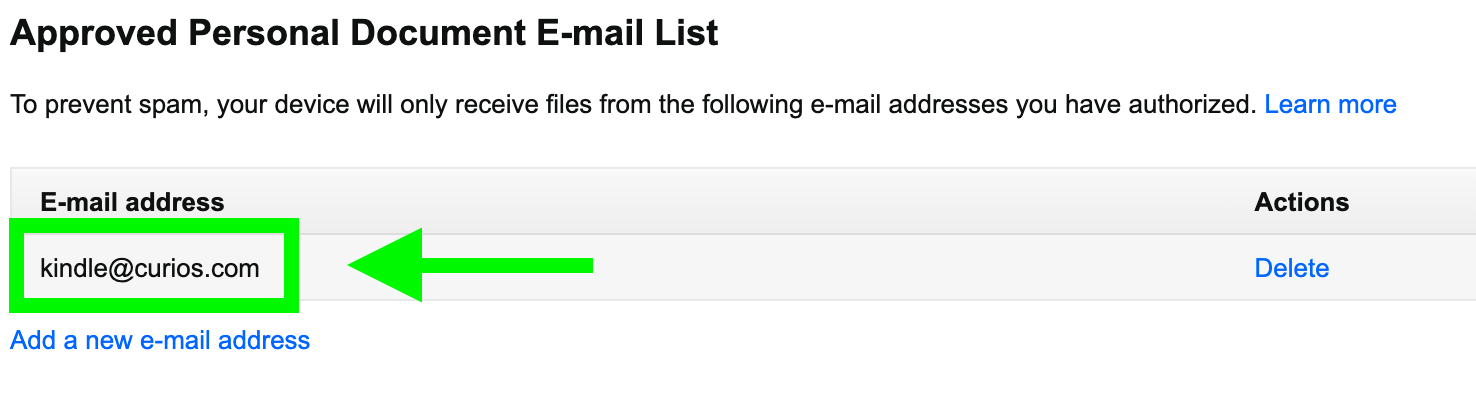
Step 5: Find Your Unique Kindle Email Address
- Scroll up from the bottom until you see "Send-to-Kindle E-Mail Settings"
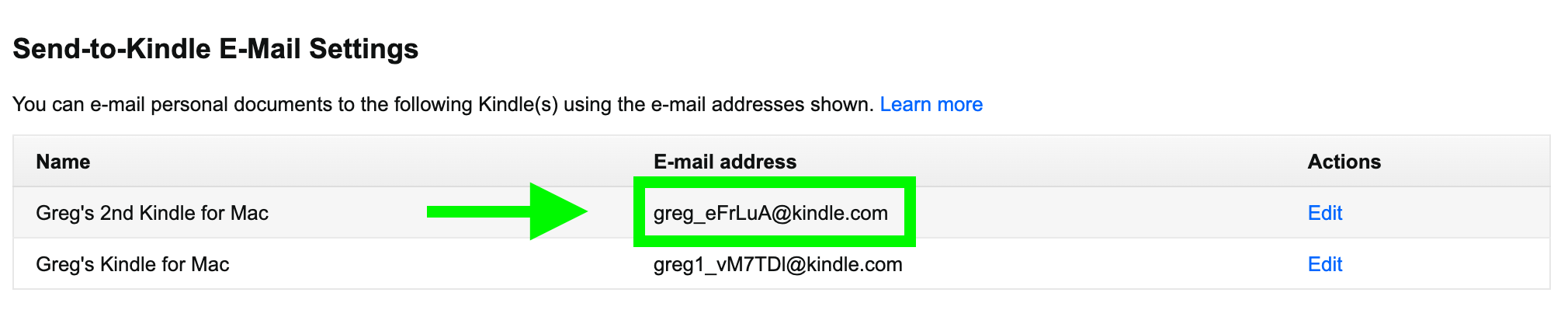
- Select the email address for your Kindle, right click, and copy the address
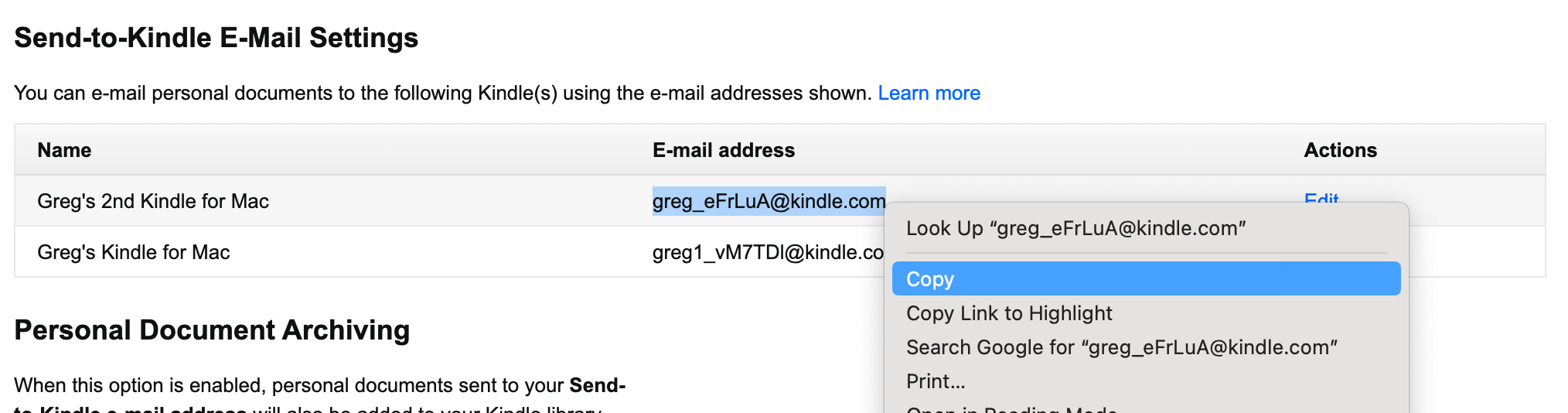
Step 6: Open Ebook on Curios and Select Send to Kindle
- Go to marketplace.curios.com
- Once you are logged in, click your account in the top right and choose "Library"
- Find the Ebook you want to send to your Kindle
- Click "Access Content" and then click "Send to Kindle"
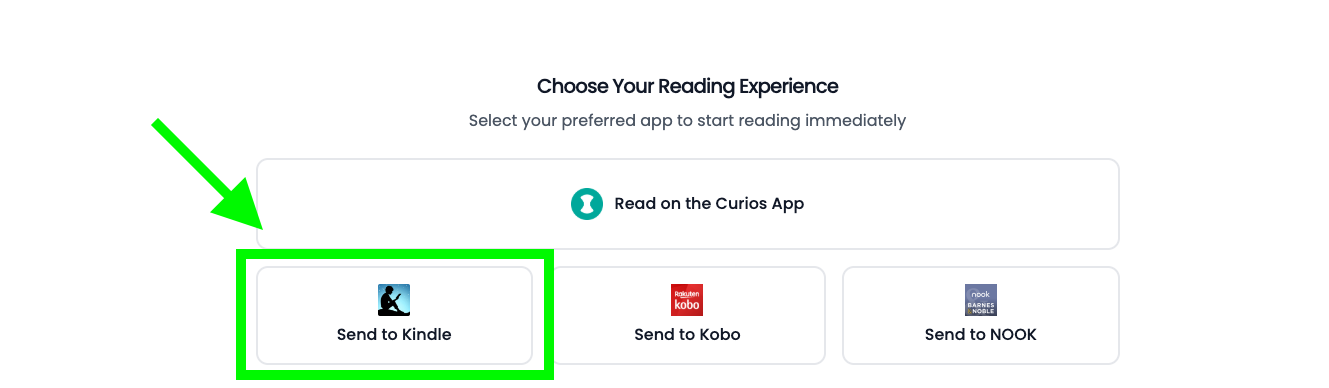
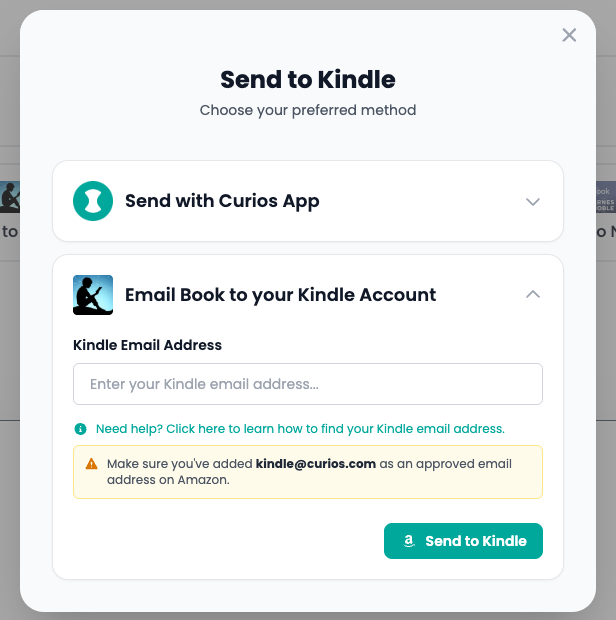
Step 7: Enter Kindle Email Address
- Paste your Kindle email address copied in step 5 into the text field and click "Send to Kindle"
- The Ebook will now show up on your Kindle device, but it may take a few minutes before it appears
Note: You will only have to complete these steps this one time. This information is saved on so you will not have to repeat these steps for any future ebook purchases on Curios.
Still Need Help?
If you're still having trouble sending books to your Kindle, our support team is here to help.
Contact SupportStep-by-Step Instructions
Step 1: Go to Amazon.com
Step 2: Open the account menu in the top right corner and click "Devices"
Step 3: Select the "Preferences" tab at the top
Step 4: Add [email protected] to approved emails
- Scroll to the very bottom of the preferences page until you see "Approved Personal Document E-mail List"
- Click on the "Add a new e-mail address" link
- Then enter "[email protected]" in the field and click "Add Address"
- You should see [email protected] added as an approved email address
Step 5: Find Your Unique Kindle Email Address
- Scroll up from the bottom until you see "Send-to-Kindle E-Mail Settings"
- Select the email address for your Kindle, right click, and copy the address
Step 6: Open Ebook on Curios and Select Send to Kindle
- Go to marketplace.curios.com
- Once you are logged in, click your account in the top right and choose "Library"
- Find the Ebook you want to send to your Kindle
- Click "Access Content" and then click "Send to Kindle"
Step 7: Enter Kindle Email Address
- Paste your Kindle email address copied in step 5 into the text field and click "Send to Kindle"
- The Ebook will now show up on your Kindle device, but it may take a few minutes before it appears
Note: You will only have to complete these steps this one time. This information is saved on so you will not have to repeat these steps for any future ebook purchases on Curios.
Still Need Help?
If you're still having trouble sending books to your Kindle, our support team is here to help.
Contact Support